Live captions for class. Big, clear and right now.
See what your professor is saying the moment they say it. Gistful turns speech into live captions in your browser, in the view that suits you, while it records the lecture for later.
How do I get live captions in a lecture?
Start a lecture in Gistful and the words appear as they’re spoken, using the speech recognition built into your browser or device. You don’t need a special microphone: a laptop or phone on the desk works, and you can tell Gistful whether the speaker is close by, across the room, or at the front of a lecture hall.
Captions run alongside a full audio recording. If the live text hiccups, the recording carries on, so you can always go back and listen. Here’s how lecture transcription works from start to finish.
Can I make the captions bigger and easier to read?
Yes. Switch to the Live Captions view and the current phrase fills the screen in large type. Open the caption settings to choose the size and how much context you see:
- Text size: Large, Extra large or Huge
- One or two previous lines above the current phrase, so you keep the thread
- High contrast, for bright rooms and tired eyes
- Keep the screen awake, so your device doesn’t lock mid-sentence when your browser allows it
The newest words can shift for a moment while your browser is still recognizing them. Each phrase settles once it’s complete.
What if I only want the essentials on screen?
Focus view strips the screen back to a minimal transcript, one note field, the bookmark button and the recorder state. It’s made for the moments when everything else is a distraction. Press Esc to step back out.
There are five views in all, and you can switch any time without stopping the recording: Document for a continuous transcript, Texting for calm chat-style bubbles, Live Captions, Focus, and Custom, where you choose the panels, text size, density and layout. The live modes page shows each one side by side.
Can I get real-time captions for an online class?
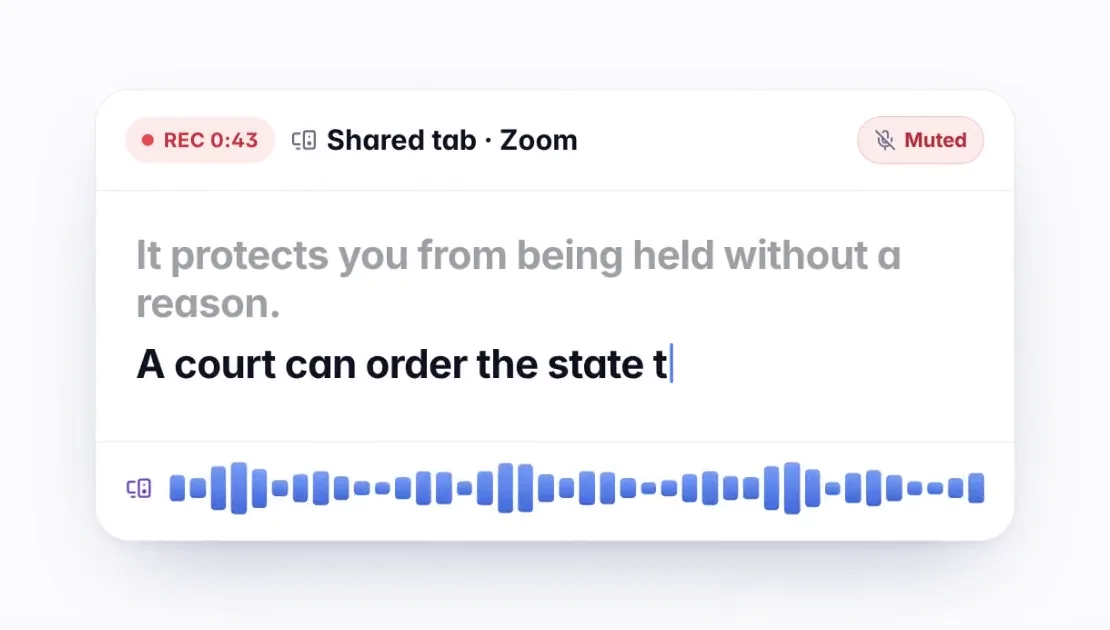
Yes. In Chrome or Edge on a computer, choose Screen or tab audio and share the tab your class is in, whether that’s Zoom, Google Meet, Microsoft Teams or a video. Gistful records what you hear, and your own microphone starts muted.
If your browser can’t show live captions for shared audio, you can still make a transcript on your device when class ends, the same way you’d transcribe a recording you already have.
What if my mind wanders for a minute?
It happens to everyone. Press Catch me up for the key sentences and terms from the last 1, 3 or 5 minutes, then jump straight back in. Or freeze the transcript to finish reading a line while Gistful keeps listening and counts the new lines for you.
Captions, large text and keyboard shortcuts are also covered in more depth on our page about accessible note-taking for students with accommodations. After class, review the lecture in 15 minutes while it’s still fresh.
Do live captions replace my school’s captioning service?
No, and we’d never want you to rely on them that way. Gistful is a study tool, and its live text depends on your browser’s speech recognition, your device and the room. If you need captions as an accommodation, ask your school’s disability services office; our guide on asking for a recording accommodation can help you prepare. Many students use Gistful alongside official support.
Keep exploring
What should I read next?
What else do students ask?
Which browsers support live captions?
Chrome and Edge on a computer, Chromebooks and Android give the most reliable live captions. Safari on iPhone, iPad and Mac works with some limits: keep Gistful open with the screen awake. The setup check tells you what to expect before class.
Are the captions free?
Yes. Gistful doesn’t charge for live captions or use a paid transcription service. They come from the speech recognition in your browser or device.
Does it label who is speaking?
No. Gistful doesn’t identify speakers yet. The Texting view groups speech into short bubbles, but they aren’t labeled by person.
Is the lecture recorded while captions are on?
Yes. Audio records the whole time, on its own track. After class you can play it back with the transcript and fix any words the captions got wrong.
Ready for your next lecture?
Make a free account in under a minute, then press Start lecture when class begins.